This guide helps you set up the Confi.care Independent Living service. Follow the steps carefully to ensure that the system works correctly and provides reliable monitoring and alerts.
1. Install the app
Download the Confi.care app from the App Store or Google Play. The app is used to set up, manage, and monitor the Independent Living service.
For iPhone (iOS):

For Android:

2. Follow the installation instructions carefully
For the system to work properly, follow the in-app onboarding steps closely and complete all device setups. The onboarding contains four main steps: providing information about the residence, configuring the service rules, adding the mandatory devices, and adding any remaining devices.
3. Sensor placement
All motion sensors must be mounted in the ceiling to ensure optimal coverage and accurate activity detection.
Ceiling placement helps each sensor detect movement within its own room and reduces the risk of detecting movement from adjacent areas.
If you have received six motion sensors, install one in each of the five recommended rooms below. Keep the sixth sensor aside. It will be installed in the refrigerator later in the setup.
Motion sensors should be installed in the following rooms:

Door sensor
The door sensor must be installed on the main entrance door used to enter and leave the home.
The easiest way to scan the QR code during setup is directly from the box the sensor came in.
Smart plug
The smart plug should be connected to an electrical device, for example a TV or Coffee machine
4. Check the service settings after installation
Once installation is complete, open the app to verify that all services are activated.
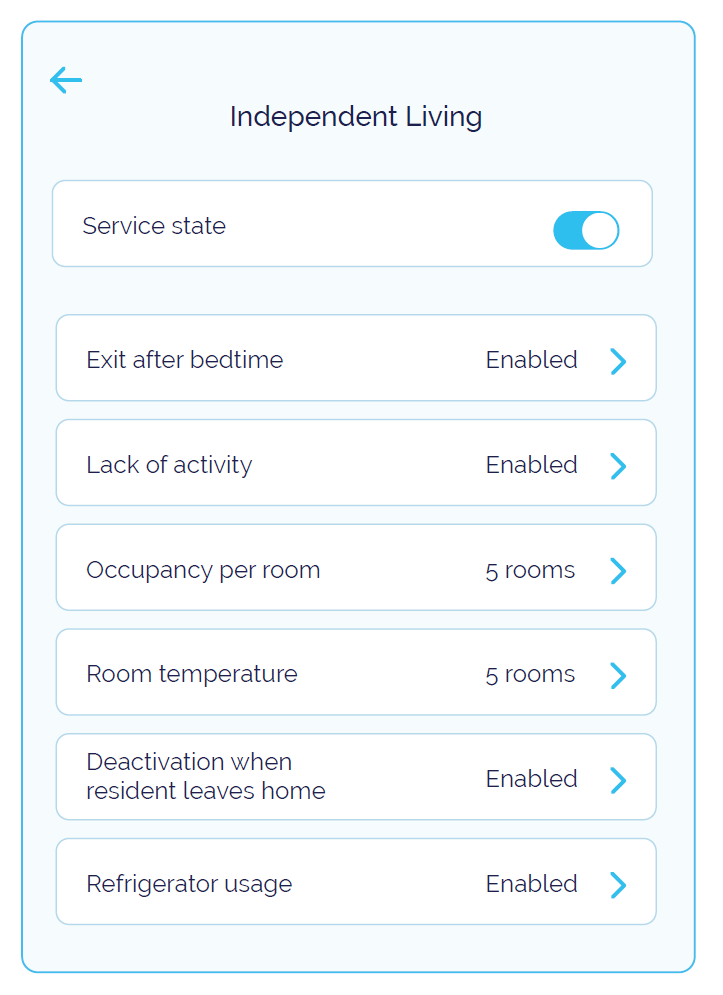
Tap the tile abeled “Active rules”, or tap “Services” at the bottom of the screen and then select “Independent Living”.
Check that all relevant services are activated in the app, especially “Deactivation when resident leaves home”.
Note that “Exit after bedtime” is disabled by default and must be turned on manually if you want to use it.
5. If any devices appear as offline
If any devices appear as unknown or offline after installation, deactivate the service and wait a couple of hours.
If the device still does not come online, visit the support articles for guidance on how to reset and reconnect the device.
Important information regarding offline sensors or incomplete sensor coverage
If a sensor is offline, or if the resident spends extended periods of time in rooms without sensor coverage, this may result in incorrect overtime alerts.
This may happen, for example, if the home requires more sensors than are included in the base package.
In such cases, the service must be temporarily deactivated until the issue has been resolved or sufficient sensor coverage has been installed.
Example:
The system registers movement in the hallway, which has an active sensor.
The resident then moves to another room where the sensor is offline, or where no sensor is installed, and remains there for three hours.
If the overtime threshold for the hallway is set to less than three hours, an overtime alert may be triggered for the hallway because it was the last room in which movement was detected.
This is not a real incident, but a consequence of incomplete or offline sensor coverage.
Was this article helpful?
That’s Great!
Thank you for your feedback
Sorry! We couldn't be helpful
Thank you for your feedback
Feedback sent
We appreciate your effort and will try to fix the article